Android downloads
Download individual tracks, albums, or playlists in the native Android app. Use full library synchronization to copy your entire music collection over your home network.
Save music for offline listening
| What to download | Where to find the control |
|---|---|
| A track | Open its ⋮ menu and choose Download. |
| An album or playlist | Use the download button next to the playback controls. |
| Audiobooks | Download each book from its own menu. |
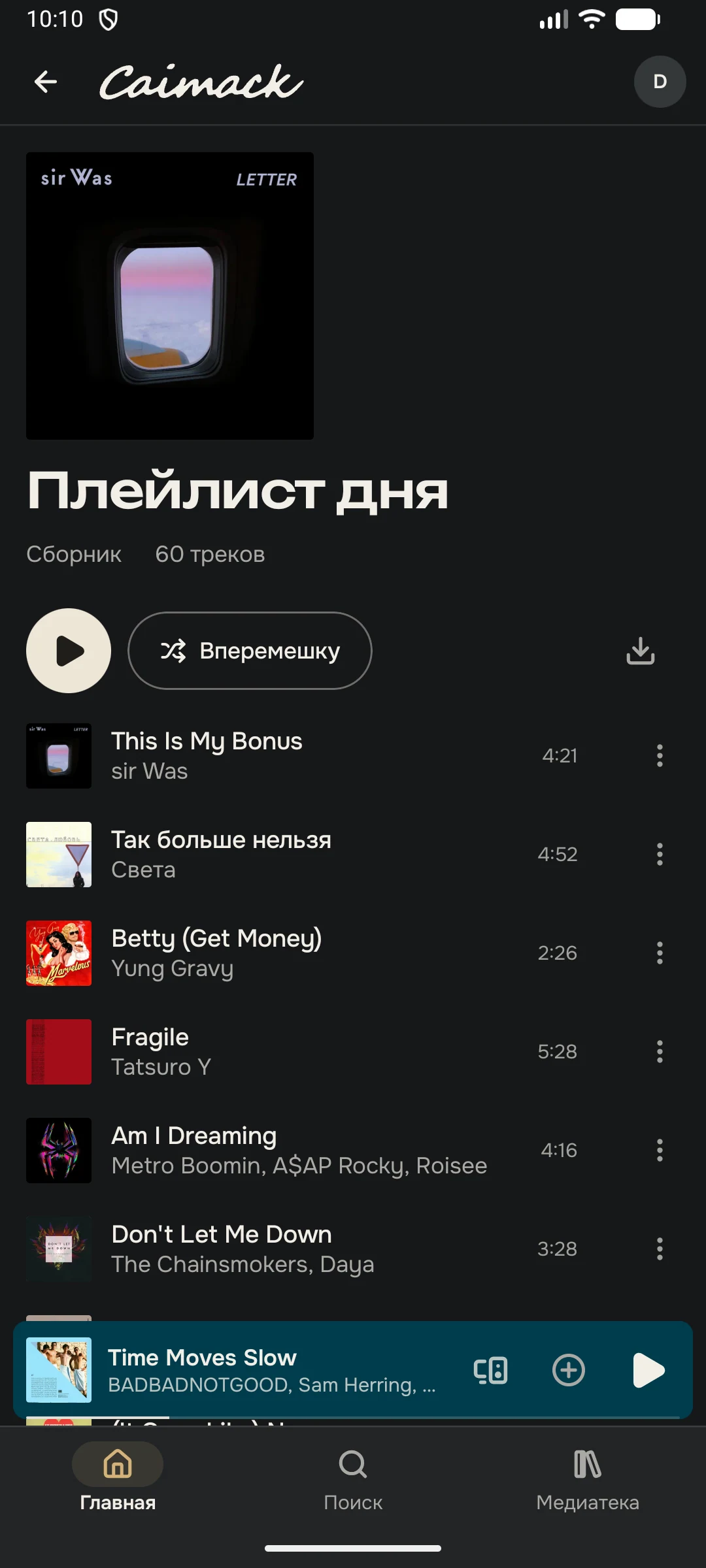
Use the individual controls when full library sync is inactive. Open Library → Downloads to see progress and available audio. A track's menu offers Cancel download while queued or running, Retry download after a failure, and Remove download once complete. Removing a download leaves the original server file in place.
Configured automatic downloads still run. Opening a page does not download its audio. A download also leaves your list of saved albums, artists, and playlists as it was.
Browse and play offline
- Saved albums, artists, playlists, and folders keep their structure after a restart. The app keeps metadata from pages opened online, separately for each server and account. Open an older playlist online once to retain its track list and order.
- Tracks without a completed offline copy are dimmed. When you start a collection offline, the queue contains its downloaded tracks in the same order.
- A track download includes enough metadata to browse its album and credited artists. Other pages need a connection the first time you open them.
- Library → Downloads includes audio from full library synchronization in the storage total. Turning sync off leaves completed copies playable and removable from Downloads.
With a saved account, the app opens while it validates the session. If the server is unreachable, downloaded music remains available. A rejected session requires sign-in. A validation response that arrives after logout or expiry cannot restore the old session.
Artwork and lyrics
Artwork for albums and credited artists is stored alongside download metadata, separate from the evictable image cache. Missing images are retried on app startup, resume, and reconnection. Image failures leave audio downloads usable. Existing images are periodically revalidated, and editing artwork requests an immediate refresh. If the server is unavailable, the app keeps the last copy. The app can import images from the older flat cache on first access.
The app fetches lyrics automatically and keeps text, line and word timing, and provider credits. It checks incomplete results every 15 seconds, up to five times per refresh, and upgrades older downloads on startup, resume, or reconnection without downloading the audio again. Failed requests keep the saved text, and manual lyrics are preserved. When a source has only line timing, the app highlights lines. See how Caimack finds lyrics.
Sync your listening activity
The app queues listening, skips, likes, unlikes, and new recommendation rules for the signed-in account, including actions from downloaded playlists. The queue survives restarts. When the app reaches an updated server, it sends these actions with the same receipts used by full library sync. The server then updates the recommendation profile. The lightweight identity endpoint requires an updated server.
Editing the catalog and personal folders in individual-download mode requires the server. Audio, metadata, and artwork stay in the app's private storage. Use the desktop client to export a synchronized music library to a regular folder.